

How To Use This Meal Plan
Review the meal plan. If you wish, print the meal plan by hitting the print collection button.

If you wish to delete or add other recipes – hit the save to my collection button. This will take you to My Saved Recipes.
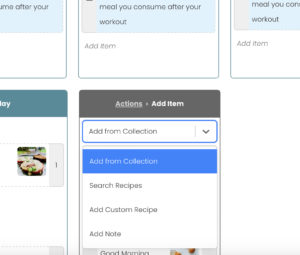
- Once there you can add recipes by clicking the ‘ADD ITEM’ either from the button or the add item on a particular day, this option appears under the recipes already listed.

Next: A drop down menu will appear in which you can search recipes.
Once you find your recipe, simply click and drag to your desired day/section of your meal plan.
Or if you have chosen to ‘add item’ direct to a day, the recipe will automatically be placed.
You can re-order meals by using the click and drag function also.
When you are finished adding items: Click on the ‘ACTIONS’ button to return to the main menu.

To remove an item simply click on the ‘REMOVE ITEMS’ button, navigate to the meal you want to remove and hit the delete button.

When finished removing items, click on the ‘STOP REMOVING ITEMS’ button.
This meal plan is written to serve one. Some recipes have more than one portion to cater for lunch the following day and freezer stash for weeks 2 and 3 (recipe will clearly state if it’s a double portion for lunch the following day or for the freezer). Adjust recipe quantities to suit your family size. You can adjust the recipe quantities for any recipe on the plan by hitting the + or – on the recipe images in the meal plan.

Once you’ve adjusted the recipe quantities to suit your family size you can print the full bank of recipes if you wish by hitting the print recipes button.

To access the shopping list click the shopping list button.

Tick select all and then hit the generate shopping list button.

If you scaled the recipe quantities previously to suit your family size – all these quantities will carry across to the shopping list and automatically update your list.
You can now review your shopping list. If you have certain items already in your store cupboard, you can tick them off and they will be crossed out.

Your shopping list is now ready to print. If you’ve crossed out some items on the shopping list you’ll need to hit save shopping list first and then print.

On this next page, you can unselect collection if you don’t want to print off the meal plan. You can also unselect the checked items (stuff you already have in your cupboards) and just print a list of exactly what you need.
